
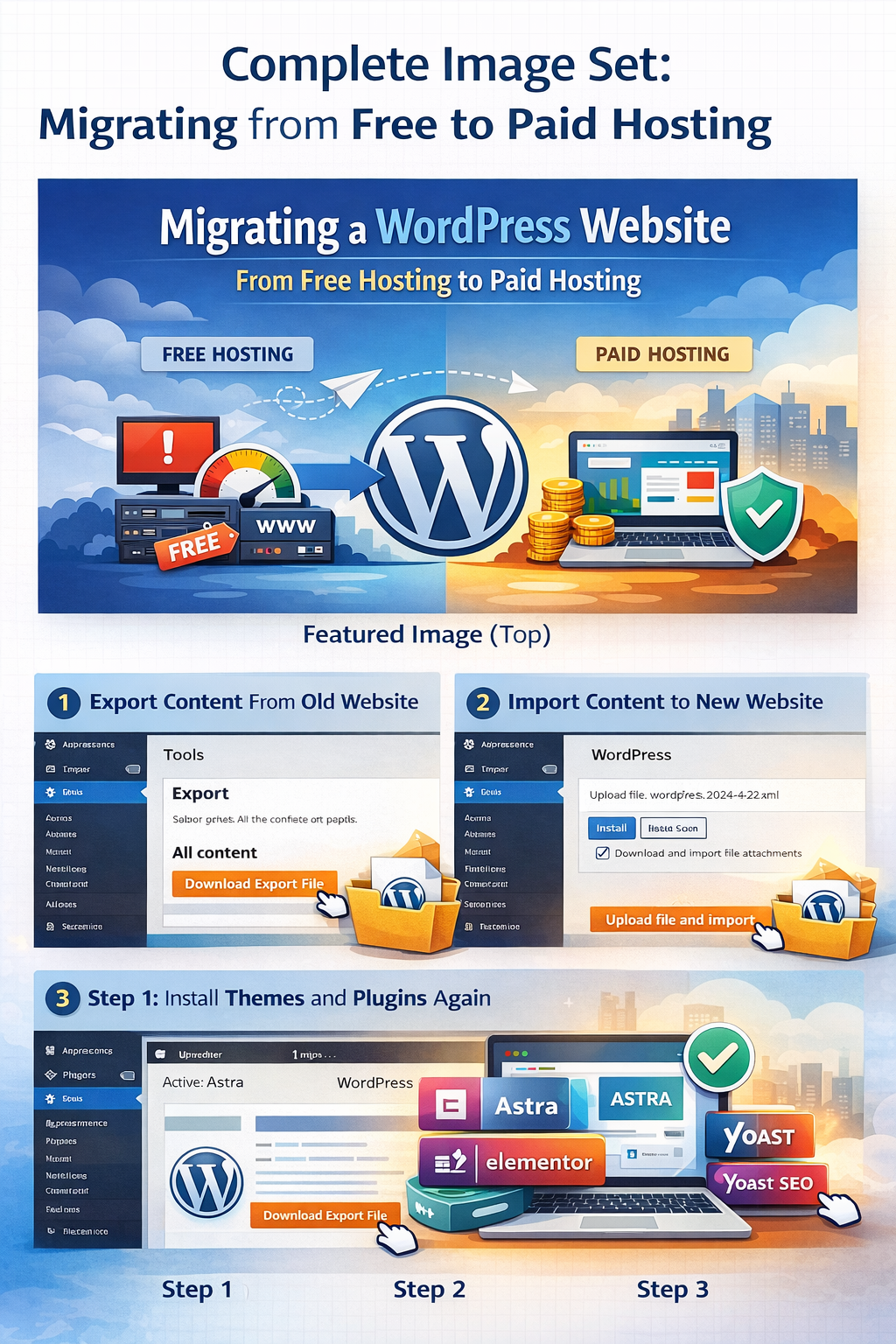
Migrating a WordPress Website from Free Hosting to Paid Hosting (Beginner’s Real Guide)
Moving a WordPress website from free hosting to paid hosting sounds simple, but beginners often face unexpected problems.
Slow downloads, stuck imports, login errors, broken admin pages — these issues are common, especially when migrating for the first time.
This guide is written from a real beginner experience, not theory.
If you are planning to move your WordPress site from free hosting to a paid domain, this article will help you avoid mistakes and do it the right way.
[IMAGE PLACEHOLDER: WordPress migration from free hosting to paid hosting illustration]
Why Free to Paid Hosting Migration Often Fails for Beginners
Free hosting platforms have many limitations.
When you try to move your website, these limits start causing problems.
Common reasons include:
- Very slow download speed
- Import process stuck at 100%
- Database conflicts
- Admin login not working
- SSL and browser security blocks
Free hosting is good for learning, but not designed for smooth migration.
[IMAGE PLACEHOLDER: WordPress import stuck at 100 percent error screen]
The Biggest Mistake Beginners Make During Migration
The most common mistake is trying to clone the entire website using heavy migration plugins.
Large backup files often fail because:
- Free hosting blocks large downloads
- Browser stops insecure files
- Server timeouts stop the import
When this happens, WordPress looks installed, but nothing works properly.
[IMAGE PLACEHOLDER: WordPress migration plugin error or backup failure]
The Safest Migration Method for Beginners (Recommended)
If you are a beginner, content migration is the safest and cleanest method.
Instead of copying everything, you move only what matters.
What This Method Transfers
- Blog posts
- Pages
- Images
- Categories
- Content structure
What You Set Again (Manually)
- Theme
- Plugins
- Design
This keeps your new website clean, fast, and error-free.
[IMAGE PLACEHOLDER: WordPress tools export and import screen]
Step-by-Step: Clean WordPress Migration (No Errors)
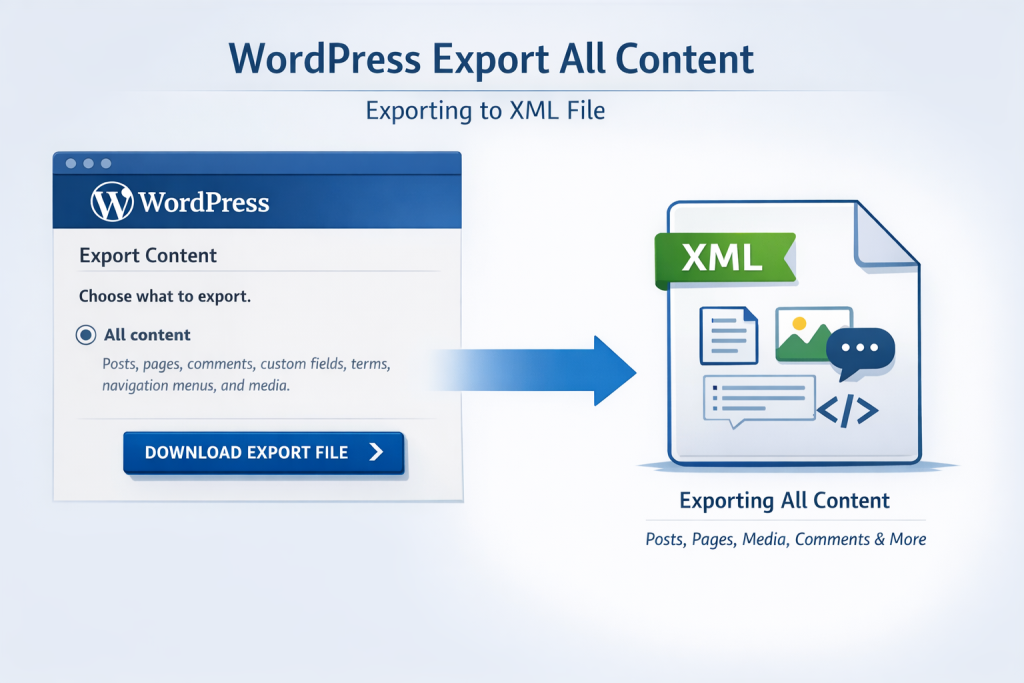
Step 1: Export Content from Old Website
- Login to old website admin
- Go to Tools → Export
- Select All Content
- Download the XML file
This file is small and downloads without stopping.
Step 2: Import Content to New Website
- Login to new website admin
- Go to Tools → Import
- Install WordPress Importer
- Upload the XML file
- Tick Download and import attachments
Your posts, pages, and images will appear automatically.
If you want to learn more about AI tools and online earning, visit our homepage for step-by-step guides.
You can also read our detailed guide on beginner-friendly WordPress blogging.