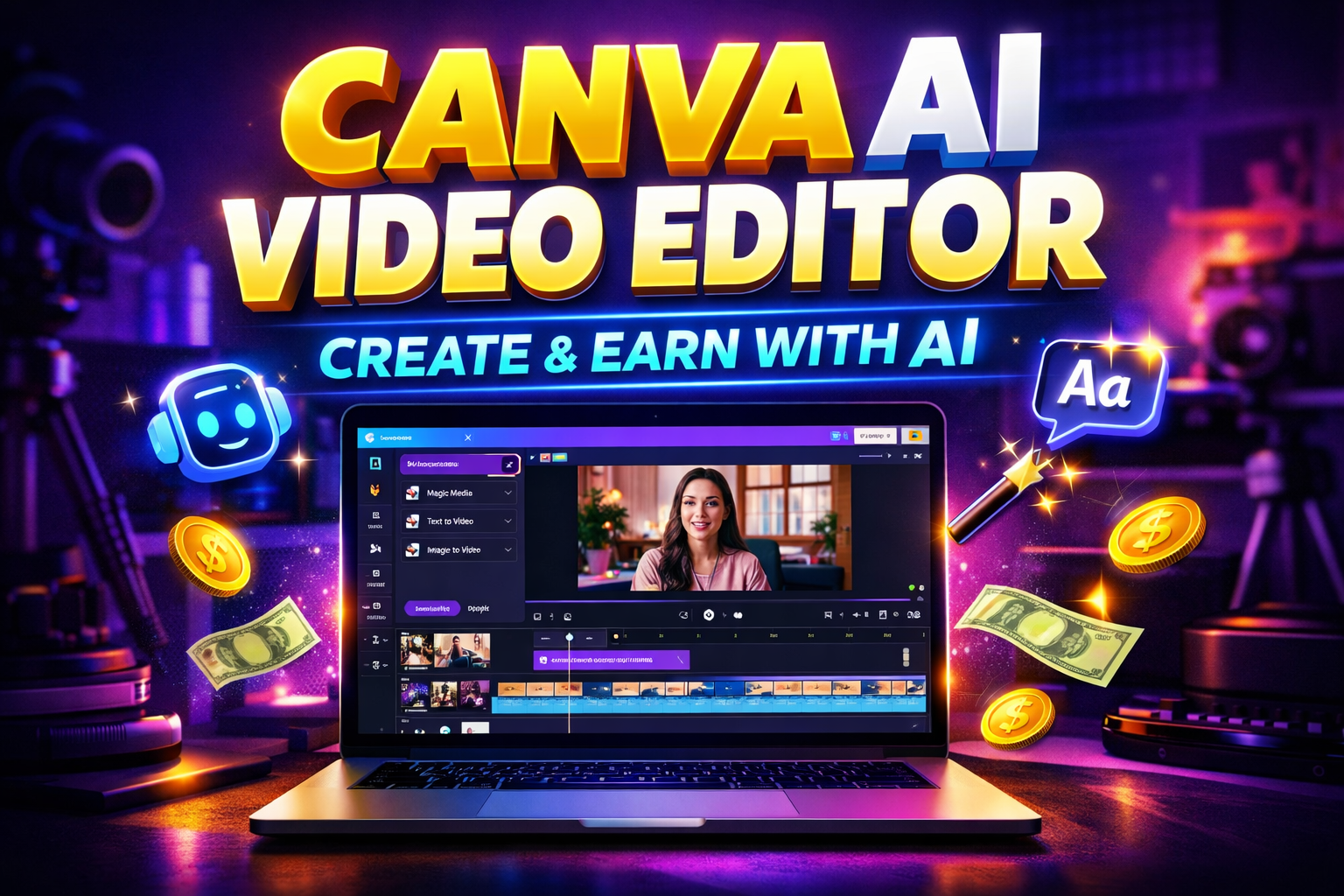
If you want to create professional videos without complex software, expensive editors, or advanced skills — Canva AI Video Editor can be your best starting point.
In this complete tutorial-style review, I will explain:
- What Canva AI Video Editor is
- Why it is powerful for beginners
- Step-by-step how to use it
- Best AI features inside Canva
- How to make money with it
- Common mistakes
- Scaling strategy
Let’s start from zero.
What is Canva AI Video Editor?
Canva is a popular online design platform.
Now it also includes powerful AI video editing features.
Inside Canva, you can:
- Generate videos using AI
- Create faceless YouTube videos
- Make Instagram reels
- Add AI voiceovers
- Use Magic Design
- Auto-generate subtitles
- Remove background
Best part?
Everything works inside your browser.
No heavy software needed.
Why Canva AI Video Editor is Trending
Because it combines:
- AI + Templates
- AI + Auto-editing
- AI + Beginner-friendly interface
It is perfect for:
- YouTube automation
- Freelancers
- Students
- Social media creators
- Small business owners
Key AI Features Inside Canva
1️⃣ Magic Design (AI Layout Generator)
Automatically creates video layouts.
2️⃣ Text-to-Video Style Templates
Turn script into ready-made scenes.
3️⃣ AI Background Remover
Remove background in one click.
4️⃣ Auto Captions
Generate subtitles instantly.
5️⃣ AI Image Generator
Create custom visuals inside Canva.
Step-by-Step: How to Use Canva AI Video Editor
Now I will explain like a YouTube tutorial.
Step 1: Login and Choose Video Format
- Go to Canva website
- Click “Create a Design”
- Select “YouTube Video” or “Mobile Video (9:16)”
Why this matters:
Correct format saves editing time later.
Step 2: Add Your Script
- Click “Text”
- Paste your script
- Divide it into short scenes
If using AI:
- Click “Magic Write”
- Generate script inside Canva
Why this matters:
Clear script = smooth video flow.
Step 3: Add AI Visuals
You can:
- Use stock videos
- Generate AI images
- Add background animations
For AI images:
- Click “Apps”
- Select “Text to Image”
- Write prompt
- Generate
Why this matters:
Strong visuals increase retention.
Step 4: Add AI Voiceover or Music
- Upload AI voiceover
- Or record directly
- Add background music
- Adjust volume levels
Why this matters:
Audio quality = professional feel.
Step 5: Add Auto Captions
- Click “Apps”
- Select “Captions”
- Generate subtitles
- Adjust style
Step 6: Export Video
- Click “Share”
- Select “Download”
- Choose MP4
- Export
Your video is ready.
How to Make Money with Canva AI Video Editor
Now the important part.
1️⃣ YouTube Automation
Create:
- Faceless story channels
- Motivational shorts
- Educational videos
Monetize via:
- AdSense
- Affiliate links
- Sponsorships
Realistic income:
$300 – $2000/month (with consistency)
2️⃣ Freelancing
Offer services:
- Social media reels
- YouTube shorts editing
- Business promo videos
Charge:
$20–$100 per video (beginner level)
3️⃣ Sell AI Content Packages
Offer:
- Monthly reel packages
- Thumbnail + video combo
- Short-form content bundles
4️⃣ Blogging & Pinterest
Create:
- Short explainer videos
- Pinterest idea pins
- Course contentIf you are exploring creative AI tools,
- you may also find our Leonardo AI review helpful for understanding how AI is being used in design and content creation.
Common Mistakes to Avoid
- Using too many animations
- Poor font selection
- Ignoring audio quality
- No subtitles
- Low contrast text
- Copying template without customization
- Inconsistent posting
Scaling Strategy
Once you grow:
- Upgrade to Canva Pro
- Batch create content
- Hire script writer
- Create niche-specific packages
- Build small AI content agency
Pros & Cons
Pros
✔ Beginner-friendly
✔ All-in-one platform
✔ Affordable
✔ AI tools integrated
Cons
✘ Limited advanced editing
✘ Needs creativity for uniquenes
If you want to learn more about AI tools and online earning, visit our homepage for step-by-step guides.
Final Verdict
If you are beginner and want:
- Simple AI video creation
- Freelancing income
- Faceless YouTube channel
- Social media growth
Canva AI Video Editor is a powerful starting tool.
But remember:
Tool doesn’t make money.
Strategy + consistency does.
Start creating today.